What should you set your Tesla Powerwall reserve to in 2026?
Most Southern California homeowners get the best results setting their Powerwall reserve between 10–30%, depending on whether their priority is TOU bill savings, wildfire backup, or NEM 3.0 self-consumption.
By Taylor Crouse — Founder, Helios Energy GlobalUpdated
Quick answer
- Most SCE homeowners on NEM 3.0 should set reserve to 10–20% for maximum daily bill savings during the 4–9 PM peak window.
- During PSPS/wildfire season (roughly May–November), consider raising reserve to 20–30% as a safety buffer.
- LADWP customers on retail-rate net metering can often run as low as 10% reserve year-round without sacrificing meaningful backup protection.
- Tesla's Storm Watch feature can automatically override your manual reserve to 100% when severe weather is forecast—you don't need to adjust it yourself.
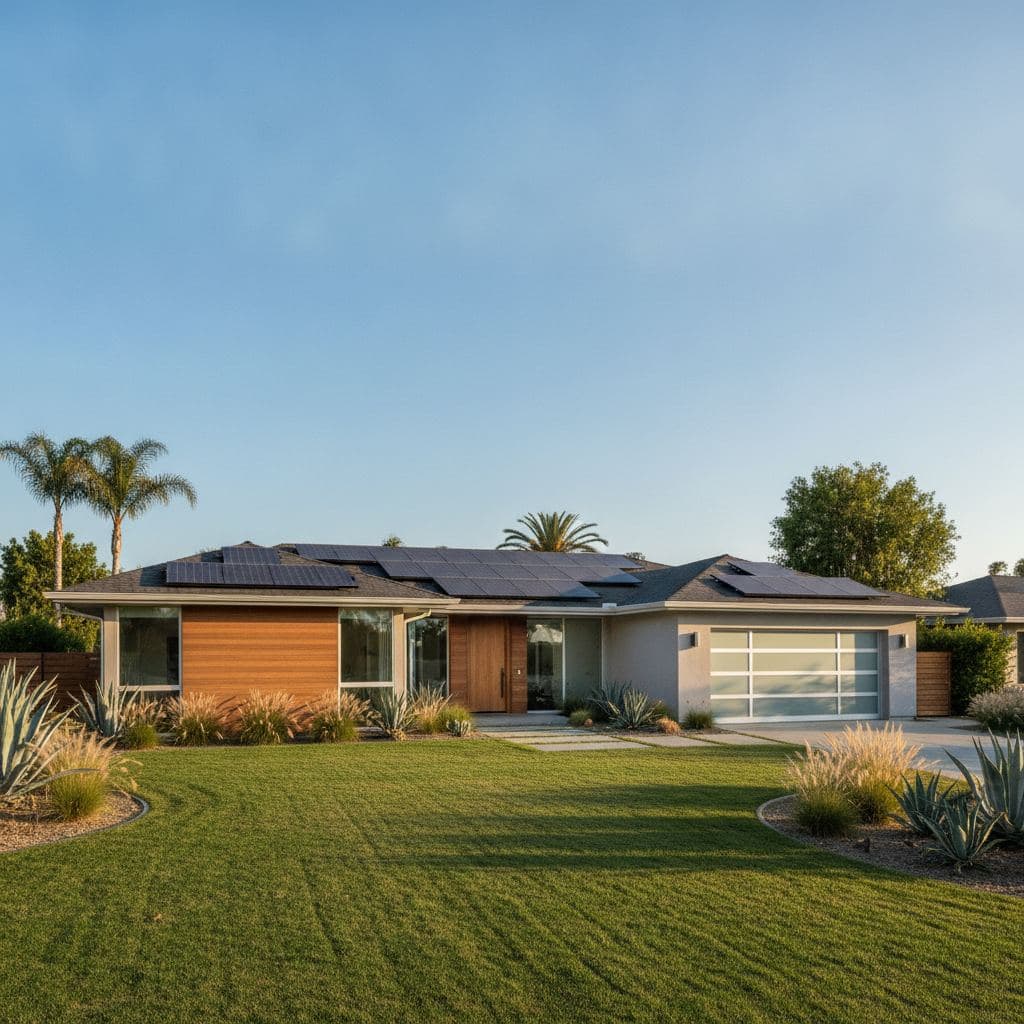
For most Southern California homeowners, a Powerwall reserve of 10–20% hits the sweet spot between daily energy savings and meaningful emergency backup. If you're in SCE territory and on NEM 3.0, running a lower reserve (10–15%) lets the battery discharge more aggressively before the 4–9 PM peak, then recharge on cheap off-peak solar or grid power overnight—that's where the real bill savings live.
Last verified: August 2026 by Helios Energy Global.
The "right" number isn't universal. It shifts depending on your utility, your rate plan, the season, and what you value most: maximum bill savings, maximum backup security, or somewhere in between. This guide walks through each scenario with specific numbers so you can dial in the setting that actually fits your life.
What the reserve setting actually does
The backup reserve is the floor below which your Powerwall will not discharge under normal operation. Set it to 20%, and the battery will stop powering your home at 20% state of charge and hold that energy for a grid outage. The moment the grid goes down, that reserved capacity becomes available instantly.
It does not affect how fast the battery charges, how much solar it stores, or how it behaves during an outage. It is purely a floor on normal daily discharge.
A common misconception: setting reserve to 0% doesn't mean the battery will drain completely every night. Tesla's battery management system always retains a small internal buffer to protect cell health—that's handled at the firmware level, not the app level. The reserve you set in the app is on top of that.
Key numbers at a glance
| Goal | Recommended Reserve | Why |
|---|---|---|
| NEM 3.0 self-consumption (SCE, SDG&E) | 10–15% | Maximize discharge before 4–9 PM peak; export credits are low anyway |
| TOU bill savings, SCE TOU-D-PRIME | 10–20% | Discharge during 4–9 PM (~34–35¢/kWh); recharge off-peak overnight |
| LADWP retail-rate net metering | 10–15% | Export credits are near retail (~28¢/kWh); lower reserve still beneficial |
| PSPS / wildfire season buffer | 20–30% | Provides 2–4+ hours of critical loads if grid cuts without warning |
| Active storm / red-flag warning | 100% (use Storm Watch) | Fully charged before event; Tesla automates this |
| Battery longevity priority | 20% | Shallower cycles reduce long-term degradation slightly |
| Full backup-first philosophy | 30–50% | Prioritizes security over savings; common for medical equipment users |
All figures are estimates based on typical Powerwall 3 / Powerwall 2 behavior and Southern California utility rate structures as of mid-2026.
Setting by goal: the detailed breakdown
Goal 1: Maximize bill savings on SCE (NEM 3.0)
If you're an SCE customer who installed solar after April 2023, you're on the Net Billing Tariff (NEM 3.0). Export credits are dramatically lower than retail—often 3–8¢/kWh depending on the hour—so sending power to the grid is rarely worth it. Your Powerwall's job is to store solar during the day and discharge it into your home during the 4–9 PM peak, when SCE's TOU-D-PRIME rate runs approximately 34–35¢/kWh.
Recommended reserve: 10–15%
In the Tesla app, set your operating mode to Time-Based Control. The app will automatically learn your utility's peak windows and optimize charge/discharge timing. Keep the reserve slider at 10–15% so the battery has maximum usable capacity to cover that 4–9 PM window. If your household uses 3–5 kWh during peak hours and you have a single Powerwall (13.5 kWh usable), a 10% reserve leaves you about 11.8 kWh of working capacity—more than enough.
For a deeper look at how NEM 3.0 changes the math, see our NEM 3.0 explained guide and solar vs. battery under NEM 3.0.
Goal 2: Bill savings on LADWP (retail net metering)
LADWP is a municipal utility and is not on NEM 3.0. As of mid-2026, LADWP still credits exported solar at close to retail rates (~28¢/kWh). That changes the calculus: exporting excess solar is actually worth something, so you don't need to be as aggressive about self-consumption.
Recommended reserve: 10–15%
You can still benefit from Time-Based Control—LADWP has its own TOU structure—but the urgency to hoard every electron is lower. A 10% reserve is fine for most LADWP customers. If your home has a medical device, sump pump, or other critical load, bump to 20%.
Other municipal customers in the Helios service area—Pasadena PWP, Burbank, Glendale, Anaheim APU—each have their own net metering rules. The broad principle holds: check whether your muni credits exports near retail, and if so, you have more flexibility on reserve without sacrificing bill savings.
Goal 3: PSPS and wildfire season (May–November)
Southern California's Public Safety Power Shutoff season runs roughly May through November, with peak risk in September and October when Santa Ana winds combine with low humidity. SCE can cut power with as little as a few hours' notice.
Recommended reserve: 20–30%
A fully charged Powerwall 3 holds about 13.5 kWh usable. A 20% reserve locks away ~2.7 kWh—enough to run a refrigerator, some lights, phone chargers, and a router for roughly 4–6 hours on its own. At 30%, you're holding ~4 kWh in reserve, which buys you closer to 6–9 hours of critical loads depending on your usage.
During PSPS season, we recommend this workflow:
- Set reserve to 20–30% as your baseline from May 1.
- Enable Storm Watch (see below) so Tesla automatically tops you off to 100% when an event is forecast.
- Return to 10–15% reserve in December if bill savings are your priority.
Goal 4: Storm Watch — let Tesla do it automatically
Storm Watch is a feature in the Tesla app that monitors weather forecasts and grid alerts. When it detects a severe weather event in your area, it automatically raises your reserve to 100% and charges the battery as quickly as possible before the storm hits. Once the event passes, it returns to your normal settings.
You do not need to manually change your reserve for storms. Just make sure Storm Watch is enabled:
- Open the Tesla app → tap your Powerwall → tap Settings → toggle Storm Watch to ON.
Storm Watch pulls data from weather services and, in some cases, utility PSPS notifications. It's not perfect—it won't catch every grid outage—but it's a reliable first line of defense and one of the most underused features on the Powerwall.
How to change your reserve setting: step by step
You don't need a laptop or a technician. The whole thing takes about 30 seconds in the app.
- Open the Tesla app on your phone.
- Tap the Powerwall card on the home screen (shows current charge level).
- Tap Go to Powerwall or the settings gear icon.
- Select Backup Reserve.
- Drag the slider to your desired percentage. The number updates in real time.
- Tap Save. The Powerwall will apply the new setting within a few minutes.
If you have multiple Powerwalls, the reserve applies to the combined system. Two Powerwalls at 20% reserve means you're holding ~5.4 kWh in backup across 27 kWh total capacity.
Operating modes and how they interact with reserve:
- Self-Powered mode: Battery covers your home load first; exports only when full. Reserve acts as the floor.
- Time-Based Control: Battery charges and discharges on a schedule optimized for your rate plan. Reserve is still the floor—the battery won't go below it even during peak discharge.
- Backup-Only mode: Battery holds 100% charge at all times and only discharges during an outage. Effectively ignores the reserve slider. Use this only if you have no interest in bill savings.
Does a lower reserve hurt battery longevity?
Marginally, but probably not enough to change your decision. Lithium iron phosphate (LFP) and NMC cells—both used in Tesla's Powerwall lineup—are most stressed by deep discharges combined with high heat. Cycling from 100% to 10% every day is harder on cells than cycling from 100% to 20%.
In practice, the difference in degradation between a 10% and 20% reserve over a 10-year period is small—likely 1–3% additional capacity loss at the lower setting, based on general lithium battery research. Tesla's warranty covers the Powerwall to retain at least 70% of its original capacity over 10 years regardless of your reserve setting (subject to warranty terms). Running at 10% reserve does not void your warranty.
If longevity is your primary concern—say, you plan to keep the system 15+ years—setting reserve at 20% is a reasonable hedge. For everyone else, the bill savings from a 10% reserve almost certainly outweigh the marginal longevity benefit of 20%.
How reserve interacts with solar production
Your reserve setting doesn't change how much solar the Powerwall stores—it only changes how much it's willing to discharge. On a sunny day, the battery will charge from solar regardless of your reserve. The reserve only kicks in during discharge: the battery stops powering your home when it hits that floor and waits for either a grid outage or the next charging opportunity.
One practical implication: if you set reserve to 50% and your solar production is low on a cloudy day, the battery may not discharge at all during the evening peak. You'd pull from the grid at peak rates even though you have stored energy. That's why a very high reserve can actually increase your bill during stretches of bad weather. Keep this in mind when deciding whether to raise your reserve for PSPS season—there's a real cost to setting it above 30% on a daily basis.
Curious how panel output affects this? See our solar panel cost and sizing guide.
Frequently asked questions about Powerwall reserve settings
How low can I set my Powerwall reserve?
You can set the reserve as low as 0% in the Tesla app, but the battery's firmware maintains a small internal buffer below that to protect cell health—so you're never truly draining to zero. In practice, a 0% app setting gives you roughly 13.5 kWh of usable capacity on a Powerwall 3. Most homeowners find 10% is a practical floor that still leaves a meaningful emergency cushion.
What happens if the grid goes out and my reserve is at 10%?
The Powerwall immediately switches to backup mode and begins powering your home from whatever charge remains above 0%. If you're at 10% when the outage starts, you have roughly 1.35 kWh available—enough for lights, a router, and phone charging for a few hours, but not much more. That's why we recommend 20–30% during PSPS season.
Should I set my reserve differently in summer vs. winter?
Yes. A seasonal approach works well for most SCE and LADWP customers: 10–15% from December through April (lower wildfire risk, maximize savings), and 20–30% from May through November (PSPS season buffer). Storm Watch handles the extreme cases automatically regardless of season.
Does the reserve setting affect how fast my Powerwall charges?
No. Charge rate is determined by your solar production, your grid connection capacity, and the Powerwall's hardware limits—not the reserve percentage. The reserve only controls the discharge floor.
Can I set different reserves for weekdays vs. weekends?
Not directly in the standard Tesla app as of mid-2026. The reserve is a single global setting. However, if you use Time-Based Control, the app's scheduling can vary charge/discharge behavior by time of day and day of week, which effectively achieves some of the same outcome.
Will Storm Watch override my manual reserve setting?
Yes. When Storm Watch activates, it temporarily overrides your reserve to 100% and charges the battery as fast as possible. Once the event clears, it returns your Powerwall to your previous manual setting automatically. You don't need to do anything.
Does my reserve setting affect the SGIP incentive?
SGIP (Self-Generation Incentive Program) residential rebates are currently waitlisted in 2026—new residential applicants are not receiving awards. If you're on a waitlist from a prior application, your incentive terms may include minimum dispatch requirements. Check your specific SGIP agreement; most residential Powerwall systems are not subject to dispatch mandates that would conflict with your reserve choice.
Next steps
- Book a free consultation and custom design — we'll model your specific utility rate, solar output, and usage to recommend the exact reserve strategy for your home.
- Explore battery storage options and pricing — Powerwall isn't the only option; see how it compares to other systems we install.
- See our full solar + battery design process — understand how reserve settings interact with system sizing before you buy.
- Read our NEM 3.0 explained guide — if you're on SCE, this is essential reading before setting your Powerwall strategy.
- Solar vs. battery under NEM 3.0 — the numbers behind why battery storage changed the equation for SCE customers.
- Learn about our Southern California service locations — we serve Santa Monica, the Westside, the San Fernando Valley, and surrounding areas.
More guides
The 10 Best Solar Companies in Fallbrook, CA (2026): Fire Country, Acreage Homes, and SDG&E's ~46¢/kWh Rates
Fallbrook's rural acreage, well pumps, ag loads, and serious PSPS fire-shutoff risk make solar + battery a different engineering problem than a tract-home install. Here's how to find the right company for it.
ReadWhat uses the most electricity in a home in 2026?
Air conditioning tops the list, accounting for roughly 25-40% of a typical Southern California home's annual electricity use — here's the full ranked breakdown.
ReadSonnen vs Tesla Powerwall 3: Which Home Battery Fits a California Home in 2026?
The Tesla Powerwall 3 stores 13.5 kWh and delivers 11.5 kW continuous; the sonnenCore+ stores 10–20 kWh at 5 kW continuous — here's which fits a Southern California home in 2026.
ReadGet a free consultation and custom design.
No pressure, no obligation — the owner reviews every design we send.